Documentation
Install & remove apps
Margine preinstalls about 40 apps so a creator desktop is ready the first time you log in. The everyday set (browser Zen, mail Thunderbird, password manager Bitwarden, LibreOffice, GNOME suite — Calculator/Calendar/Maps/Weather/etc., viewers Loupe/Papers/Showtime/Snapshot/SoundRecorder, audio Pinta/Audacity/EasyEffects/Reaper/g4music/Blanket, Fragments torrent client, Apostrophe markdown editor, Smile emoji picker, Extension Manager) is there waiting — no install screen at first boot. Four heavier creative apps (GIMP, Inkscape, darktable, OBS Studio) arrive in the background within 5-15 min of the first login; a notification tells you they're coming and another fires when they're ready. The opt-in gaming layer (`ujust margine-gaming`) adds Steam, Lutris, Heroic, Bottles, ProtonPlus, Protontricks, and RetroArch when you ask for it. This page is about everything that comes after that — install something new, remove something you don't use, or grab a developer tool. Everything below has a GUI path; CLI is shown only as an alternative.
Install something new — open Bazaar
Bazaar is the app store on Margine. You'll find it pinned to the dock (orange box icon) and at the top of the Activities search.
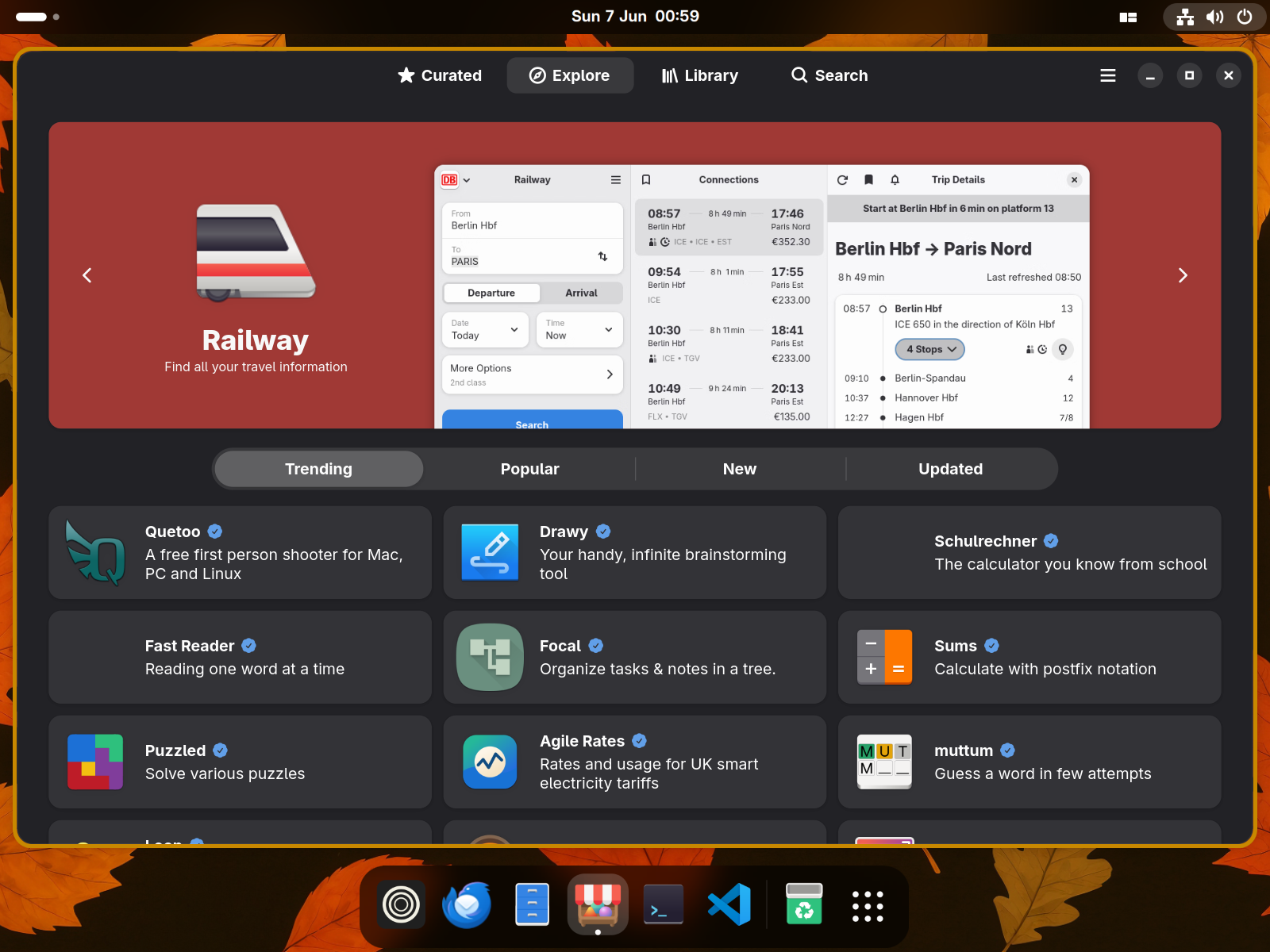
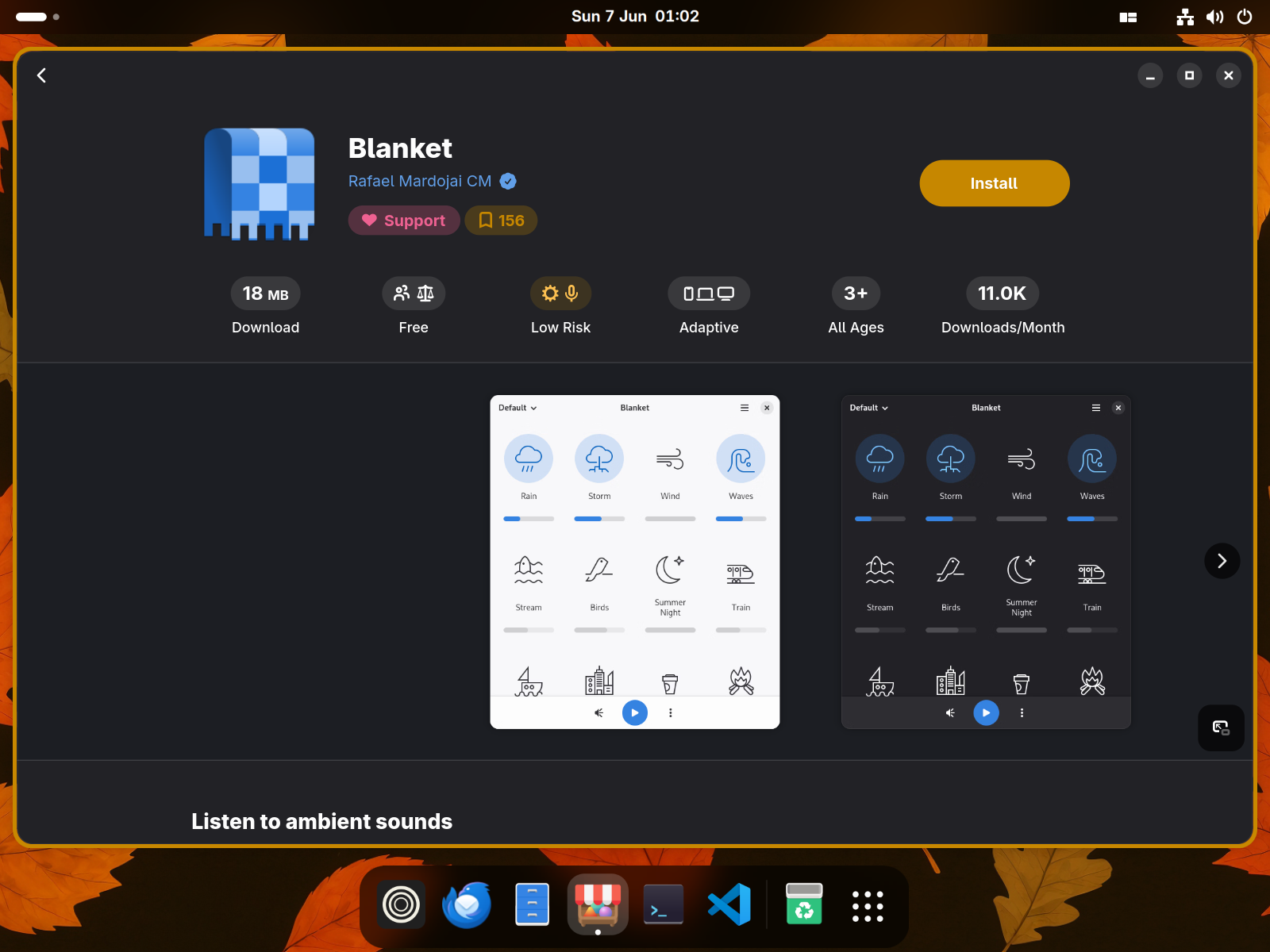
How to use it: type the app name into the search bar, click the result, click the big Install button. That's it. Bazaar installs the app as a Flatpak — sandboxed, no sudo, the install lives entirely inside your home directory.
To remove an app: in Bazaar, click your profile (top-right) → Installed, find the app, click the trash / Remove icon. Bazaar cleans up the sandbox, the user data is wiped too unless you opted to keep it.
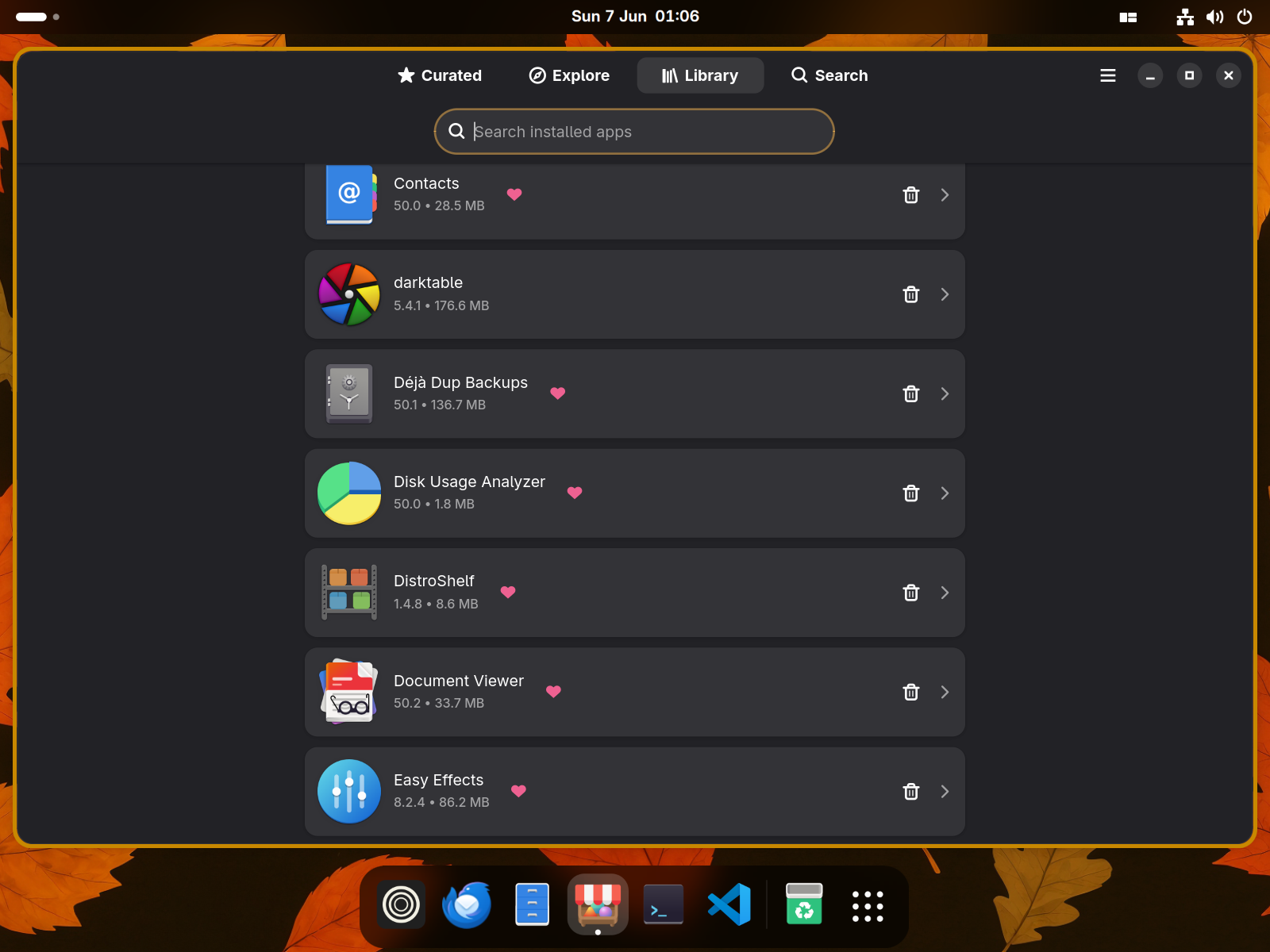
Removing one of the apps Margine preinstalled
Same workflow. Margine's preinstalled set (Zen Browser, Thunderbird, LibreOffice, GIMP, OBS, Reaper, …) is installed as Flatpak too — they all show up in Bazaar's Installed tab and can be removed there. Once removed, they won't come back on their own (the Margine preinstall list only fires on the first login of a new user account).
When a system tool needs to live at the OS level
A few things can't be Flatpaks — kernel modules, udev rules, system services. For those, Margine uses rpm-ostree from a terminal: it adds the package as a layer on top of the OS image and asks for a reboot. Open Ptyxis from the dock and run:
sudo rpm-ostree install <package-name>
systemctl reboot
Use this sparingly: each layered package makes future upgrades take a little longer. For CLI tools (htop, fd, ripgrep), prefer the next section.
Need a CLI tool? Use Homebrew (no terminal-savvy required)
Margine ships Homebrew preconfigured. From Activities, open Ptyxis (the terminal), type the command below, paste your password if asked. You don't need to learn anything else.
brew install ripgrep fd htopThat installs tools into your user account only — they don't touch the OS image at all. Update them later with brew upgrade; remove with brew uninstall <name>.
For developers — Distrobox containers
If you're building software, the right place is a Distrobox container: a full Fedora / Ubuntu / Arch / whatever inside your user account, with its own sudo and package manager, fully isolated from the host. The GUI for this is DistroShelf (preinstalled in Margine DX — available from Activities).
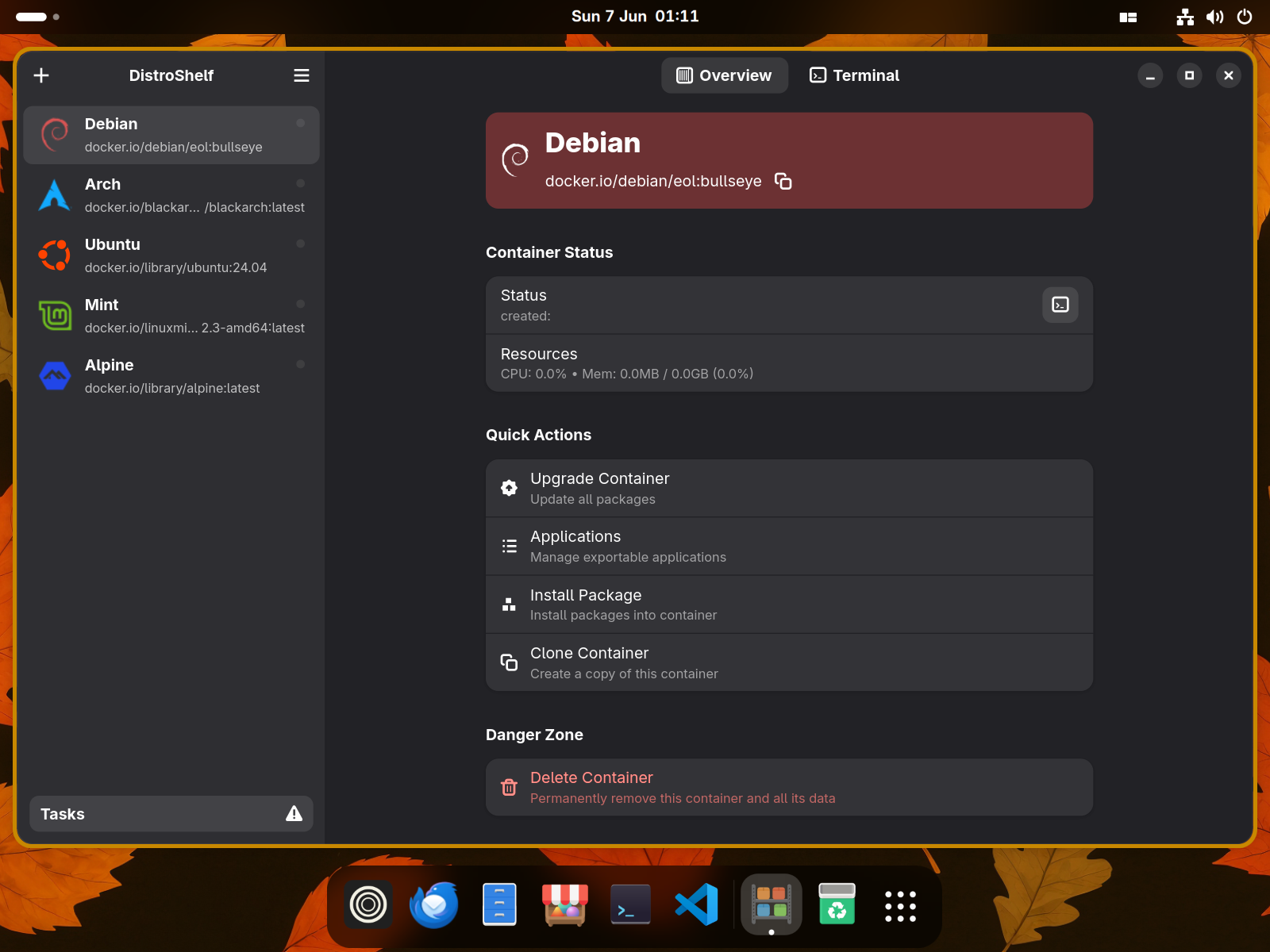
If you prefer the terminal:
distrobox create --name fedora-dev --image fedora-toolbox:latest
distrobox enter fedora-dev
# inside the container: full sudo + dnf, isolated from the host
CLI cheatsheet (for the curious)
Everything the GUIs above do can also be done with one line. Useful if you're scripting, automating, or asking for help in a forum and someone wants you to "run this command".
# Bazaar (Flatpak) equivalents
flatpak install   flathub com.example.App      # install
flatpak uninstall com.example.App              # remove
flatpak update                                  # update all

# rpm-ostree (layered system packages)
sudo rpm-ostree install   <package-name>
sudo rpm-ostree uninstall <package-name>
systemctl reboot
sudo rpm-ostree status                         # what's layered now

# Homebrew (CLI tools)
brew install   <tool>
brew uninstall <tool>
brew upgrade                                   # update everything

# Distrobox
distrobox list                                 # what containers you have
distrobox enter   <name>                       # open a shell inside one
distrobox stop    <name>                       # stop a running one
distrobox rm      <name>                       # delete it